Introduction
IPTV streaming has revolutionized how we consume television content, offering thousands of channels and on-demand entertainment at our fingertips. However, nothing disrupts your viewing experience more than persistent buffering issues on your Firestick or Smart TV. Whether you’re watching live sports, movies, or your favorite shows, constant buffering can transform an enjoyable evening into a frustrating ordeal.
The good news is that most IPTV buffering problems stem from identifiable causes and can be resolved with the right troubleshooting approach. This comprehensive guide will walk you through proven methods to fix IPTV buffering issues, optimize your streaming quality, and ensure smooth playback across all your devices. From internet speed optimization to device-specific configurations, we’ll cover everything you need to transform your IPTV experience from frustrating to flawless.
Understanding Why IPTV Buffering Occurs
Before diving into solutions, it’s essential to understand what causes IPTV buffering in the first place. Buffering happens when your device cannot download streaming data fast enough to play it smoothly. Several factors contribute to this problem, including insufficient internet bandwidth, network congestion, outdated hardware, or issues with your IPTV service provider.
When streaming IPTV content, data packets travel from the service provider’s servers through your internet connection to your device. Any bottleneck in this pathway creates delays, resulting in the dreaded spinning wheel or frozen screen. According to FCC broadband recommendations, streaming HD content requires at least 5-8 Mbps, while 4K streaming demands 25 Mbps or more.
Your Firestick or Smart TV processes these data streams through various software layers, and problems at any level—from your router to the IPTV application itself—can trigger buffering. Understanding this chain of events helps you identify where the problem lies and apply the most effective solution.
Check and Optimize Your Internet Connection Speed
The foundation of smooth IPTV streaming is a reliable, fast internet connection. Before troubleshooting device-specific issues, verify that your internet speed meets the minimum requirements for your desired streaming quality.
Test Your Current Internet Speed
Start by conducting a speed test directly on your Firestick or Smart TV. Download a speed test application from your device’s app store or use the built-in browser to visit a speed testing website. Run multiple tests at different times to get an accurate picture of your connection quality. Pay attention to three key metrics:
- Download Speed: Should be at least 25 Mbps for HD streaming and 50 Mbps for 4K content
- Upload Speed: Less critical for viewing but important for interactive services
- Ping/Latency: Lower is better; aim for under 50ms for optimal performance
If your speeds fall below these thresholds, contact your Internet Service Provider to discuss upgrading your plan. Many buffering issues resolve simply by increasing your available bandwidth, especially in households with multiple simultaneous users.
Upgrade Your Internet Plan if Necessary
Consider that modern households often have multiple devices competing for bandwidth simultaneously. If family members are gaming, video conferencing, or streaming on other devices while you watch IPTV, you’ll need significantly more speed than the minimum requirements. A good rule of thumb is to have at least 10-15 Mbps available per streaming device, plus additional bandwidth for other household activities.
IPTV Buffering Fix Firestick: Device-Specific Solutions
Amazon Firestick devices are incredibly popular for IPTV streaming, but they require specific optimization to deliver the best performance. These compact devices have limited processing power and memory, which can contribute to buffering if not properly configured.
Clear Cache and Data on Your Firestick
Over time, your Firestick accumulates cached data that consumes valuable storage space and processing resources. Regularly clearing this cache improves performance significantly. Navigate to Settings > Applications > Manage Installed Applications, then select your IPTV app. Choose “Clear Cache” and “Clear Data” to remove accumulated temporary files. Repeat this process for all streaming applications you use regularly.
For the best IPTV services for Firestick, this maintenance task should be performed weekly to maintain optimal performance. Additionally, restart your Firestick after clearing cache by holding the Select and Play buttons simultaneously for five seconds.
Disable Background Apps and Processes
Firestick devices run multiple background processes that consume bandwidth and processing power. Force-stop applications you’re not actively using by going to Settings > Applications > Manage Installed Applications, selecting each unused app, and choosing “Force Stop.” This frees up system resources for your IPTV streaming.
Update Your Firestick Software and IPTV Apps
Outdated software frequently causes compatibility issues and performance problems. Check for Firestick system updates by navigating to Settings > My Fire TV > About > Check for Updates. Install any available updates and restart your device. Similarly, update your IPTV applications through the Amazon App Store to ensure you’re running the latest, most optimized versions.
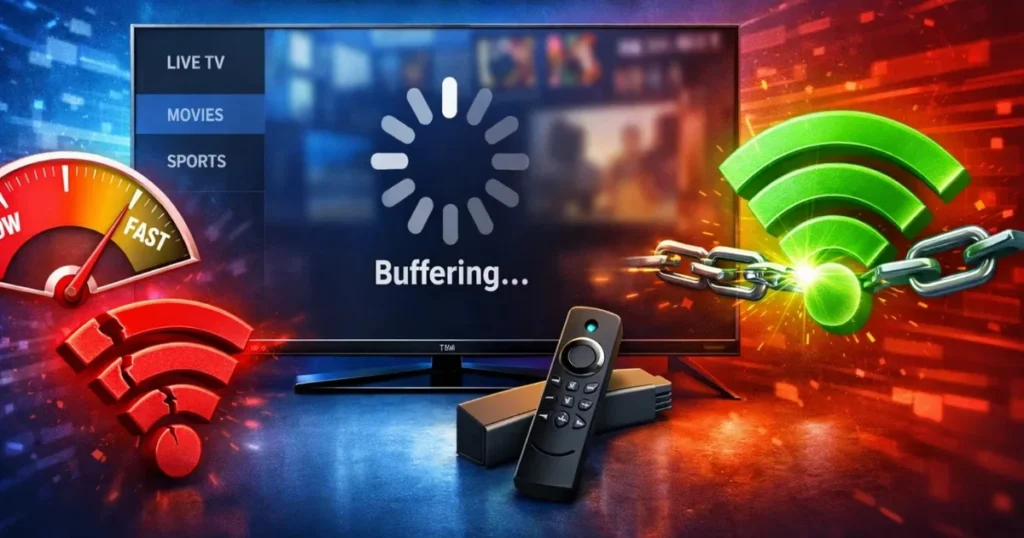
Improve IPTV Streaming Quality Through Network Optimization
Network configuration plays a crucial role in streaming performance. Even with adequate internet speed, poor network setup can create bottlenecks that cause buffering.
Use Wired Ethernet Connection Instead of WiFi
WiFi convenience comes at the cost of reliability and speed. Wireless signals degrade through walls, suffer interference from other devices, and share bandwidth with all connected devices. Whenever possible, connect your Firestick or Smart TV directly to your router using an Ethernet cable. For Firestick, you’ll need an Ethernet adapter, but the investment pays dividends in streaming quality.
Wired connections provide consistent speeds without the packet loss and latency spikes common with WiFi. According to network performance studies, Ethernet connections typically deliver 10-20% faster speeds with significantly lower latency compared to WiFi in the same location.
Optimize Your WiFi Network Settings
If a wired connection isn’t feasible, optimize your WiFi setup for streaming. Place your router in a central, elevated location away from metal objects and electronic interference. Switch to the 5GHz WiFi band instead of 2.4GHz for faster speeds and less congestion, though note that 5GHz has shorter range.
Access your router settings and change the WiFi channel to one with less interference. Tools like WiFi Analyzer can identify the clearest channels in your area. Additionally, enable Quality of Service (QoS) settings in your router to prioritize streaming traffic over other internet activities.
Reduce Network Congestion
Limit simultaneous bandwidth-intensive activities while streaming IPTV. Pause large downloads, schedule system updates for non-viewing hours, and ask household members to defer bandwidth-heavy activities during critical streaming times. Many modern routers offer device prioritization features that ensure your streaming device receives bandwidth priority.
Configure Smart TV Settings for Better IPTV Performance
Smart TVs have their own optimization requirements that differ from streaming sticks. These integrated systems benefit from specific configurations that reduce buffering and enhance picture quality.
Adjust Video Quality Settings
While everyone wants the highest quality picture, forcing 4K or UHD streaming on an insufficient connection guarantees buffering. Access your IPTV app settings and adjust the video quality to match your actual internet speed. Start with 720p or 1080p and gradually increase if your connection handles it smoothly. Many quality IPTV services offer adaptive streaming that automatically adjusts quality based on available bandwidth.
Disable Smart TV Background Features
Smart TVs run numerous background processes including automatic updates, app refreshes, and content recommendations. Disable these features in your TV’s settings menu to free up processing power and network bandwidth for streaming. Navigate to your TV’s system settings and turn off automatic updates, content recognition features, and unused smart features.
Update Smart TV Firmware
Manufacturers regularly release firmware updates that improve performance and fix bugs. Check your TV manufacturer’s website or the TV’s settings menu for available updates. Install these updates to ensure optimal compatibility with modern IPTV applications and protocols.
IPTV Lag Solution: Advanced Troubleshooting Techniques
When basic fixes don’t resolve buffering issues, these advanced techniques can identify and solve more complex problems.
Change DNS Settings for Faster Resolution
Your device uses DNS servers to translate website addresses into IP addresses. Slow DNS servers add latency to every connection request. Switching to faster public DNS servers like Google DNS (8.8.8.8 and 8.8.4.4) or Cloudflare DNS (1.1.1.1) often reduces buffering and improves connection speed. IPTV Buffering.
On Firestick, install a DNS changer app from the Amazon App Store. On Smart TVs, access network settings and manually enter the DNS server addresses. According to Cloudflare’s documentation, their DNS service is designed for speed and privacy, making it an excellent choice for streaming. IPTV Buffering.
Use a VPN to Bypass ISP Throttling
Some Internet Service Providers throttle streaming traffic during peak hours, deliberately slowing your connection. A quality VPN encrypts your traffic, preventing your ISP from identifying and throttling IPTV streams. Choose a VPN with servers optimized for streaming and high bandwidth capacity to avoid introducing additional latency. IPTV Buffering.
Install a Dedicated IPTV Player Application
Generic streaming apps don’t always optimize for IPTV protocols. Installing a specialized IPTV Buffering player like IPTV Smarters, TiviMate, or other dedicated applications can significantly improve performance. These apps include features like hardware acceleration, advanced buffering controls, and protocol optimization specifically designed for IPTV Buffering streaming.
Choose a Reliable IPTV Subscription Service
Sometimes the buffering problem isn’t on your end—it’s with your IPTV provider. Low-quality services with insufficient server capacity, poor bandwidth allocation, or unreliable infrastructure will buffer regardless of your setup optimization. IPTV Buffering.
When selecting an IPTV subscription, prioritize providers with proven reliability, robust server networks, and positive user reviews. Look for services offering multiple server locations, which allow you to switch to less congested servers when experiencing buffering. The most reliable IPTV providers for 4K streaming invest heavily in infrastructure to ensure consistent performance even during peak viewing hours.
Quality providers also offer adaptive streaming technology that automatically adjusts stream quality based on your connection, preventing buffering while maintaining the best possible picture quality. Before committing to a long-term subscription, test the service with a trial period to verify performance on your specific devices and network. IPTV Buffering.
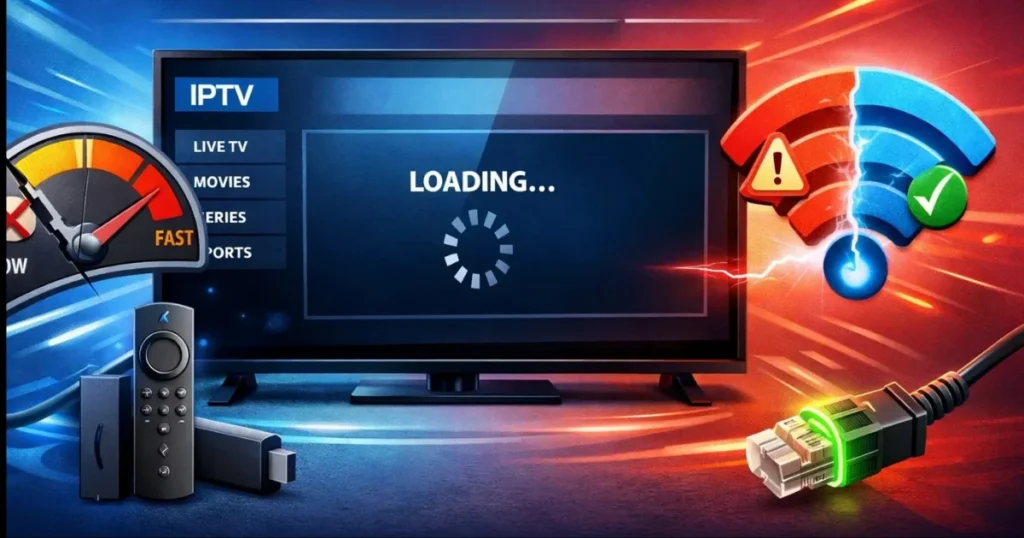
Router Configuration and Hardware Upgrades
Your router is the gateway through which all internet traffic flows. An outdated or improperly configured router creates bottlenecks that no amount of device optimization can overcome. IPTV Buffering.
Upgrade Your Router for Better Performance
Routers older than three years may lack the processing power and modern protocols necessary for high-quality streaming. Modern routers support WiFi 6 (802.11ax), offer better range, handle more simultaneous connections, and include advanced Quality of Service features. If you’re using an ISP-provided router, consider purchasing a dedicated streaming-optimized router for significantly better performance. IPTV Buffering.
Configure Quality of Service (QoS) Settings
QoS allows you to prioritize streaming traffic over other internet activities. Access your router’s admin panel (typically by entering 192.168.1.1 or 192.168.0.1 in a web browser), locate the QoS settings, and configure your streaming device as the highest priority. This ensures that even when network demand is high, your IPTV stream receives the bandwidth it needs. IPTV Buffering.
Restart Your Networking Equipment Regularly
Routers and modems benefit from periodic restarts that clear memory caches and refresh connections. Unplug your modem and router, wait 30 seconds, then reconnect the modem first, waiting until all lights stabilize before powering on the router. This simple maintenance task resolves many intermittent IPTV Buffering issues.
Monitoring and Maintaining Optimal Streaming Performance
Consistent IPTV performance requires ongoing maintenance and monitoring. Establish a routine that includes clearing cache weekly, checking for updates monthly, and monitoring your internet speed regularly. Keep a log of when buffering occurs—noting the time of day, specific channels, and circumstances—to identify patterns that point to specific causes. IPTV Buffering.
Many budget IPTV services in USA provide customer support and server status pages. Bookmark these resources and check them when experiencing issues to determine if the problem is widespread or specific to your setup.
Consider using network monitoring tools that track your connection quality over time. These applications identify intermittent issues that may not be apparent during manual speed tests but significantly impact streaming performance during actual use.
Conclusion
Fixing IPTV buffering issues on Firestick and Smart TVs requires a systematic approach that addresses internet connectivity, device optimization, network configuration, and service provider quality. By implementing the solutions outlined in this guide—from basic steps like clearing cache and checking internet speed to advanced techniques like DNS optimization and hardware upgrades—you can dramatically improve your streaming experience. IPTV Buffering.
Remember that buffering problems rarely have a single cause. The most effective approach combines multiple optimization strategies tailored to your specific setup. Start with the simplest solutions like clearing cache and testing your internet speed, then progress to more advanced fixes if problems persist. With the right combination of a quality IPTV subscription, optimized devices, and properly configured network, you can enjoy smooth, buffer-free streaming of all your favorite content. IPTV Buffering.
The investment of time in properly configuring your streaming setup pays dividends in viewing enjoyment. Whether you’re watching live sports, movies, or international programming, these optimization techniques ensure you spend more time enjoying content and less time staring at buffering screens. IPTV Buffering.
Take Action: Experience Buffer-Free IPTV Streaming Today
Ready to experience truly reliable IPTV streaming without frustrating buffering interruptions? Stop settling for inconsistent service and constant troubleshooting. Professional IPTV providers invest in the infrastructure necessary to deliver smooth, high-quality streams regardless of peak viewing times.
Discover why thousands of users trust premium IPTV services for their entertainment needs. With robust server networks, adaptive streaming technology, and dedicated customer support, quality providers eliminate buffering at the source rather than requiring endless troubleshooting on your end. IPTV Buffering.
Get your free 24h trial and experience the difference that professional IPTV service makes. Test the performance on your Firestick or Smart TV with no commitment and see for yourself how proper infrastructure eliminates buffering issues before they start. IPTV Buffering